KDAN PDF MCP Server
com.kdandoc.mcp/kdan-pdf-mcp
Upload, edit, compress, protect, redact, and compare PDFs with natural language in Claude and ChatGPT.
What is the KDAN PDF MCP server?
KDAN PDF MCP is a free, no-account MCP server that lets you edit PDFs through chat in Claude and ChatGPT. It enables compression, page deletion, password protection, PII redaction, document comparison, and file preview—all via natural-language instructions without leaving your AI assistant.
KDAN PDF MCP eliminates the download-edit-upload cycle by giving Claude and ChatGPT the ability to manipulate PDFs directly. You attach a file and describe what you want in plain language—compress it, remove pages, redact sensitive data, compare versions, or add password protection—and get back a ready-to-use result. It's free, requires no account or credit card, and applies true (permanent) redaction suitable for compliance workflows.
How to install KDAN PDF
Copy-paste configuration for popular MCP clients.
Tools & capabilities
Tools this server exposes to the agent.
Upload PDF— Upload and ingest PDF files for processingPreview PDF— Display a preview of the PDF contentCompress PDF— Reduce file size of PDFsDelete Pages— Remove specified pages from a PDFPassword Protect— Add password protection to a PDFChange Password— Update or modify existing PDF passwordRedact PII— Permanently remove sensitive information like emails, phone numbers, IDs, and credit card numbersCompare PDFs— Compare two PDF versions and highlight differences side by sideGenerate Download Link— Create a shareable download link for the processed PDF
Use cases
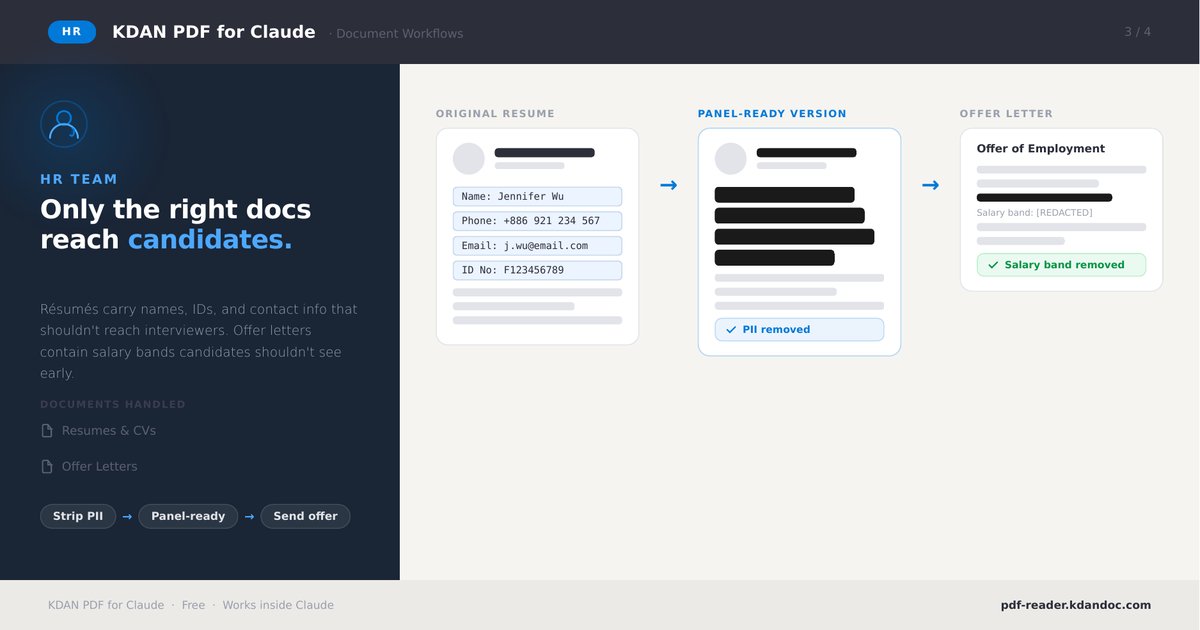
- Redact PII from resumes, contracts, or compliance documents before sharing externally
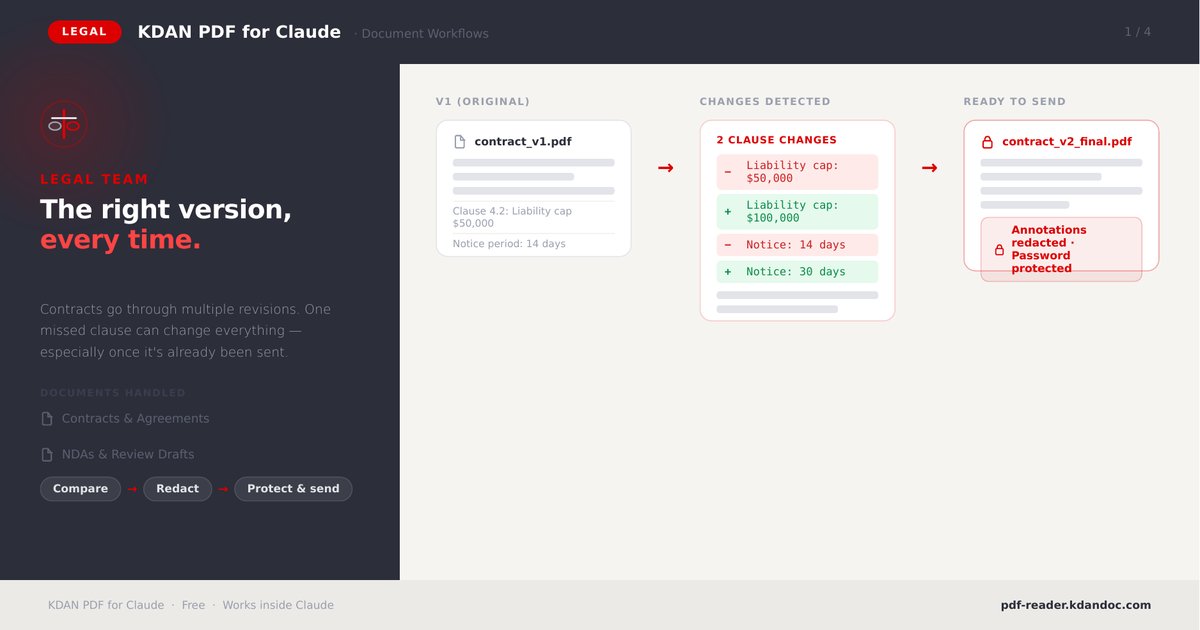
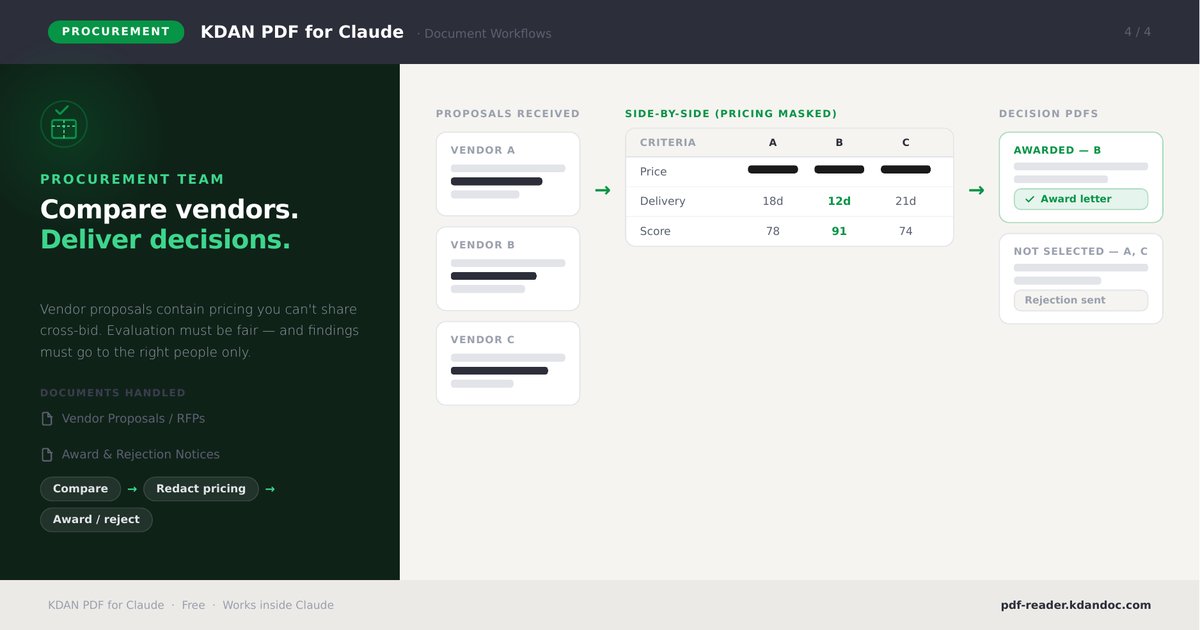
- Compare contract or proposal versions and mask sensitive pricing or internal notes in one workflow
- Compress large presentation decks and password-protect them before sending to clients
- Remove draft pages and internal comments from specifications or reports
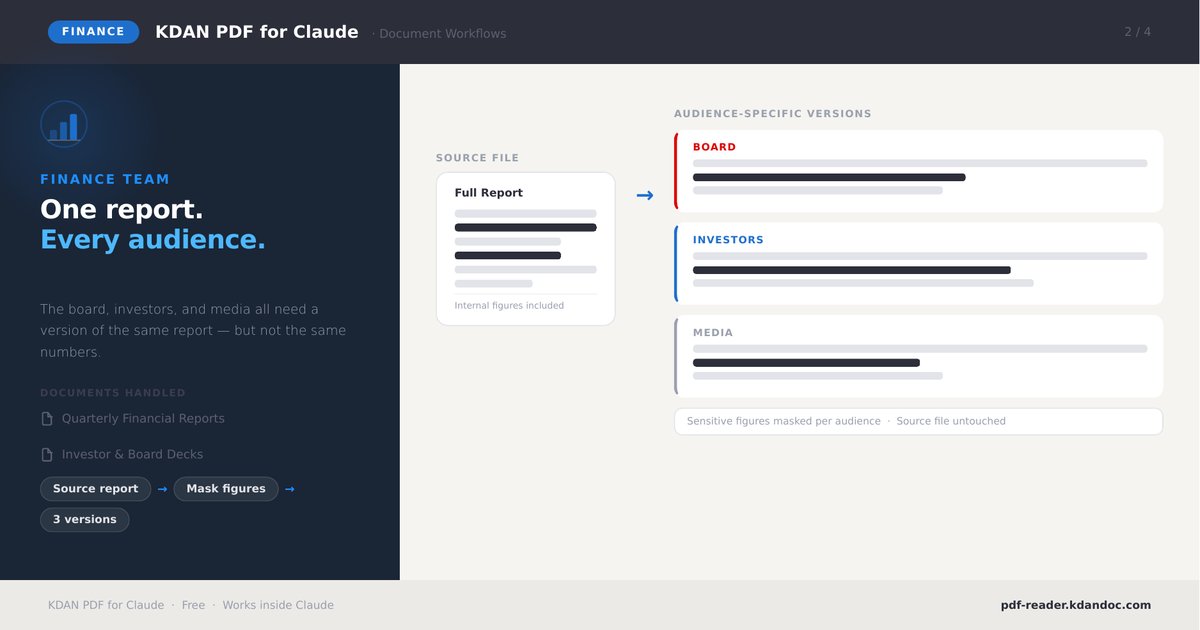
- Mask financial figures or salary information to create audience-specific document versions
KDAN PDF MCP server FAQ
Yes, it is completely free and unlimited with no account, credit card, or usage caps required.
Go to Settings → Connectors → Add Connector and paste https://mcp.kdandoc.com/mcp, then complete the authorization flow. It works on free Claude accounts.
Go to Settings → Plugins → Add New Plugin and paste https://mcp.kdandoc.com/mcp, then complete authorization. May require a paid ChatGPT plan.
KDAN PDF MCP applies true redaction—the underlying text is permanently removed and cannot be recovered from the output file, making it compliance-ready.
You can compress, delete pages, password-protect, change passwords, redact PII, compare two versions, preview, and generate download links—all through natural-language chat.
No account is needed. Simply paste the connector URL once and start using it immediately.
README (reference)
Source of truth, from the repository.





KDAN PDF MCP
Organize, protect, compare & redact PDFs — just by chatting.
Contents: What is MCP? · Why KDAN PDF MCP · How it works · Setup on Claude · Setup on ChatGPT · What you can do · Tips · Built for every team · Feature spotlights · Prompt Pack & resources · Privacy & security · FAQ · Troubleshooting · Support
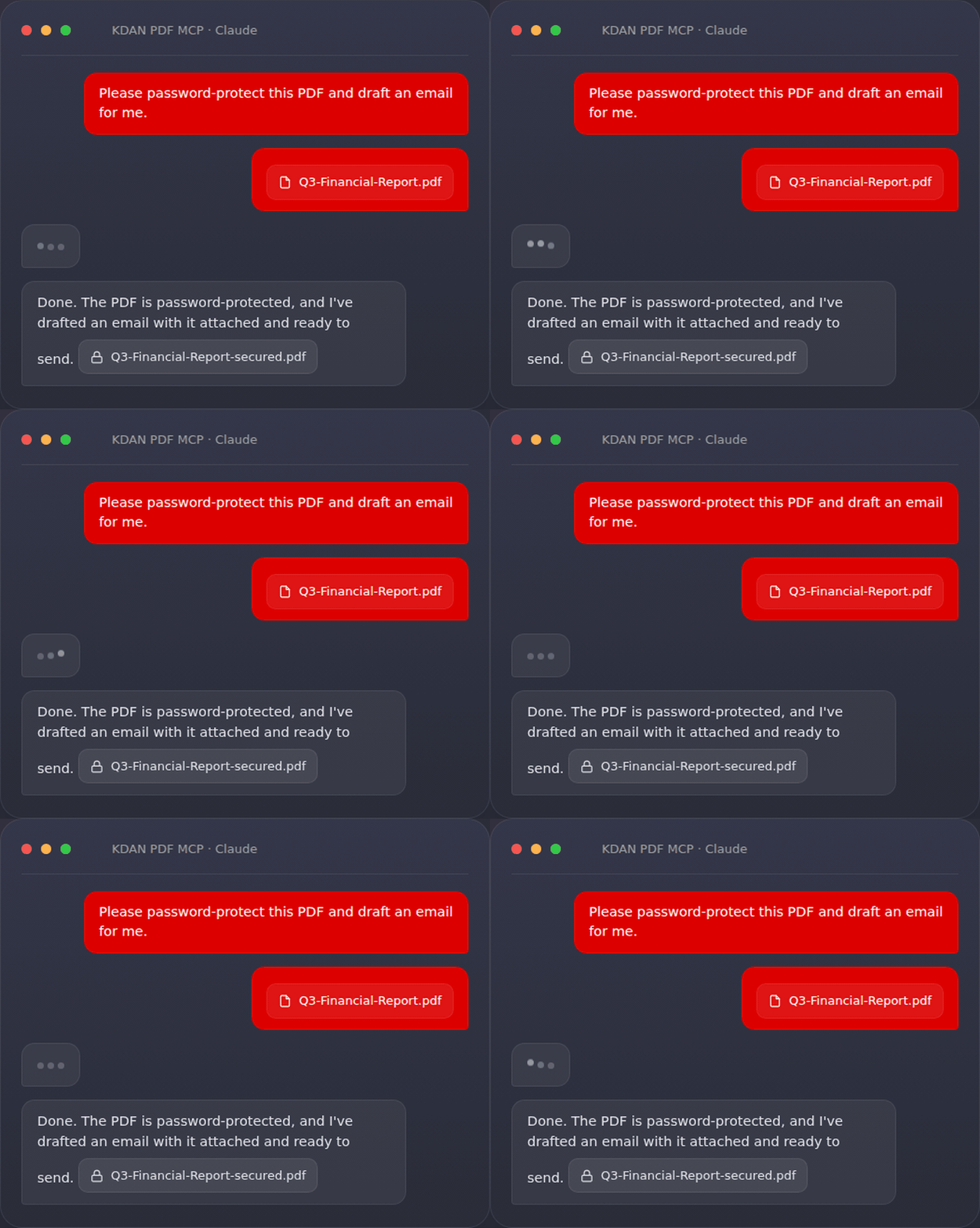
KDAN PDF MCP is a remote MCP server that lets users prepare PDFs with natural-language instructions. In supported AI assistants such as Claude or ChatGPT, users can ask KDAN PDF MCP to compress large files, remove selected pages, redact sensitive information, compare document versions, or add or update password protection before documents are shared, submitted, or reviewed.
What is MCP? (Plain-English version)
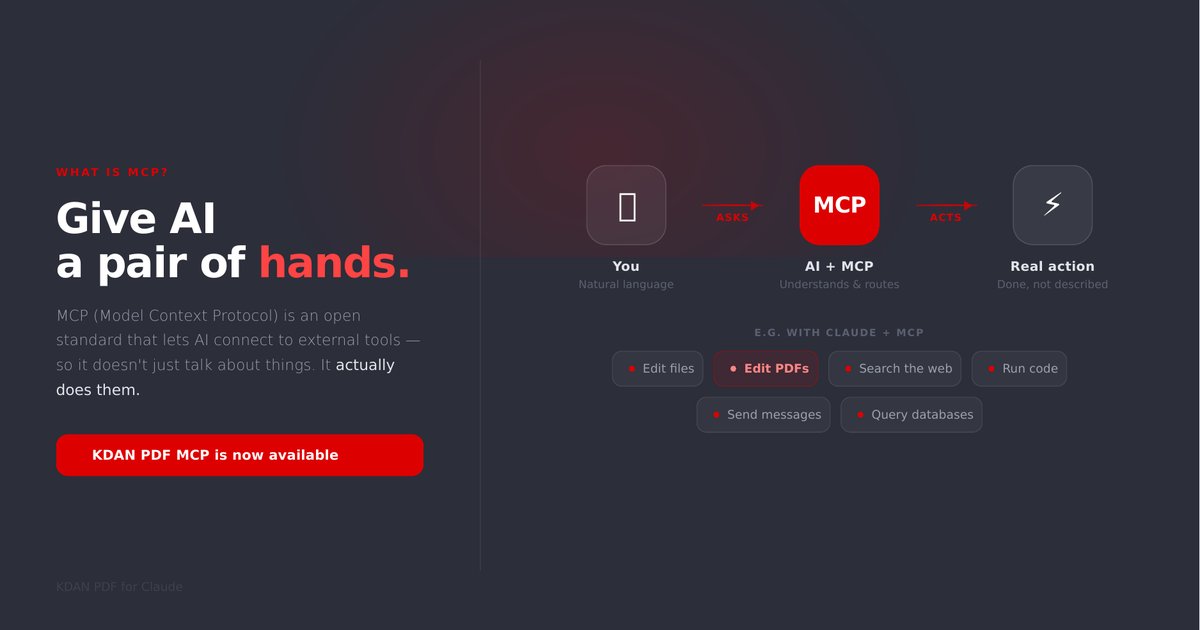
Think of an AI assistant like Claude as very capable, but with no hands — on its own it can only talk about your PDF. MCP (Model Context Protocol) is an open standard that gives the AI a real pair of hands: it can now actually open your file, edit it, and save a new copy for you. KDAN PDF MCP is the connector that plugs KDAN PDF's editing tools into that assistant.
No code, no installation, no account. You paste one link into your AI assistant once, and from then on you just type what you want in plain language.
Why KDAN PDF MCP
- One sentence, done. Replace the download → open another tool → find the right button → re-upload routine with a single message.
- Free & unlimited. No account, no credit card, no usage caps, no upsell.
- True redaction. Sensitive data is permanently removed, not hidden under a black box — built for compliance.
- Stays in your conversation. Compare, redact, protect and deliver without switching apps.
How it works
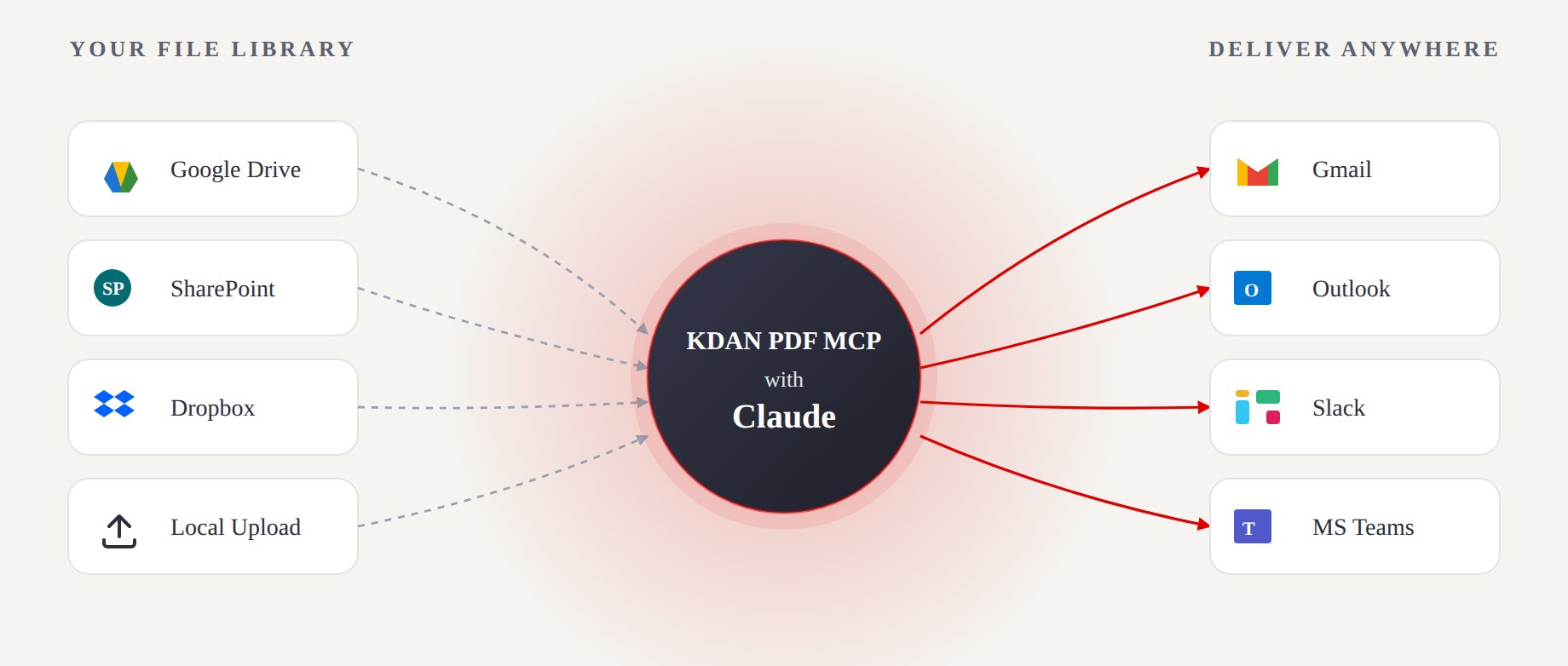
Pull a file from wherever it lives, let KDAN PDF MCP + your AI assistant do the work, and send the result straight to where your team already is.
Setup on Claude
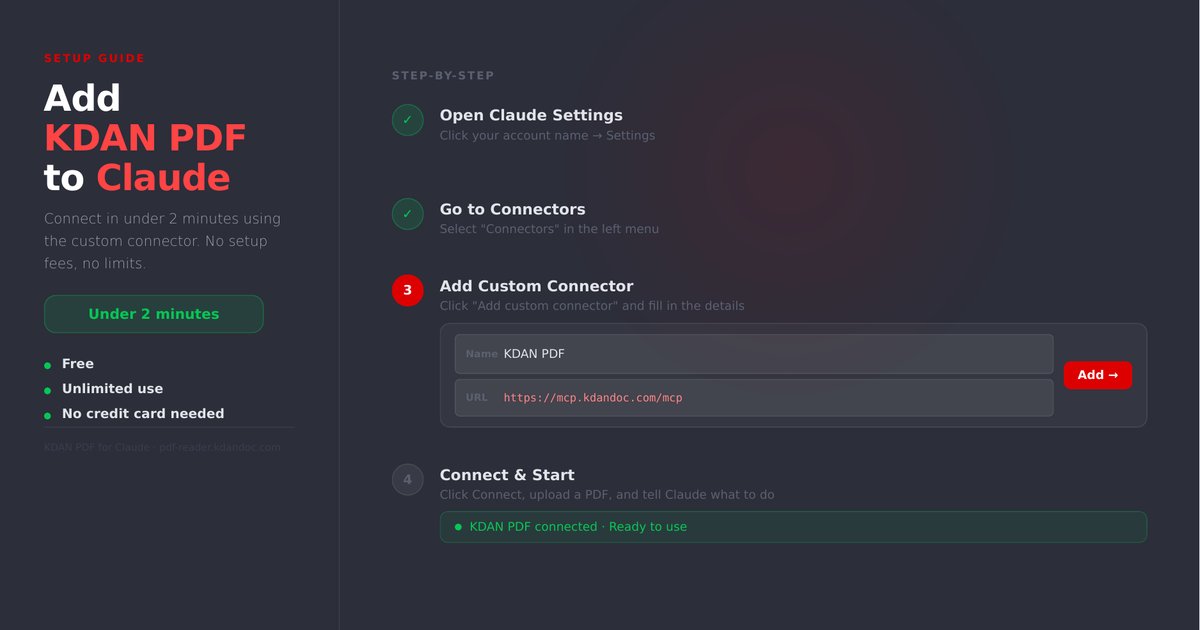
Works on free accounts. Steps are the same for both Claude Desktop and claude.ai.
- Click your account icon → Settings
- Select Connectors → Add Connector
- Paste the following URL:
https://mcp.kdandoc.com/mcp
- Claude will walk you through the authorization flow to grant access.
Once connected, just tell Claude what you want — for example: "Help me compress this PDF and remove page 3."
Setup on ChatGPT
May require a paid plan.
- Go to chatgpt.com, click your account icon → Settings
- Select Plugins → Add New Plugin
- Paste the following URL:
https://mcp.kdandoc.com/mcp
- Complete the authorization flow to finish setup.
What You Can Do
Once connected, try asking your AI assistant:
- "Upload this PDF."
- "Show me a preview."
- "Compress this PDF and tell me how much smaller it got."
- "Delete page 3 from this PDF."
- "Add a password to protect this contract."
- "Change the password of this PDF."
- "Redact the customer's email address on page 2."
- "Compare these two PDFs and highlight the differences side by side."
- "Give me a download link for the final file."
Tips for best results
- Attach the PDF in the same message as your request.
- Be specific about pages and targets — e.g. "redact emails and ID numbers on pages 2–4."
- For multi-step jobs, chain them in one sentence: "Compare v1 and v2, redact the names, then password-protect the result."
- Ask for a download link when you want the finished file.
Built for every team
The same connector fits seven everyday workflows:
| Team | Typical job | One-sentence example |
|---|---|---|
| Legal | Compare contract versions, strip internal notes, protect before sending | "Compare v1 and v2, redact comments, then set a password." |
| Finance | One report, audience-specific versions with figures masked | "Mask the internal figures for the investor version." |
| HR | Remove PII from resumes; hide salary bands on offer letters | "Black out names, IDs and phone numbers on this resume." |
| Procurement | Compare vendor proposals with pricing masked; issue decisions | "Compare these three proposals and mask the pricing." |
| Marketing & Sales | Compress decks, protect proposals before sharing externally | "Compress this deck and password-protect it." |
| Project Management | Clean up specs, remove draft pages, share final copies | "Delete the draft pages and give me a clean copy." |
| Engineering | Redact credentials from logs/specs before distribution | "Redact any keys or emails in this document." |
Feature spotlights
<details> <summary>Protect any PDF with one sentence</summary>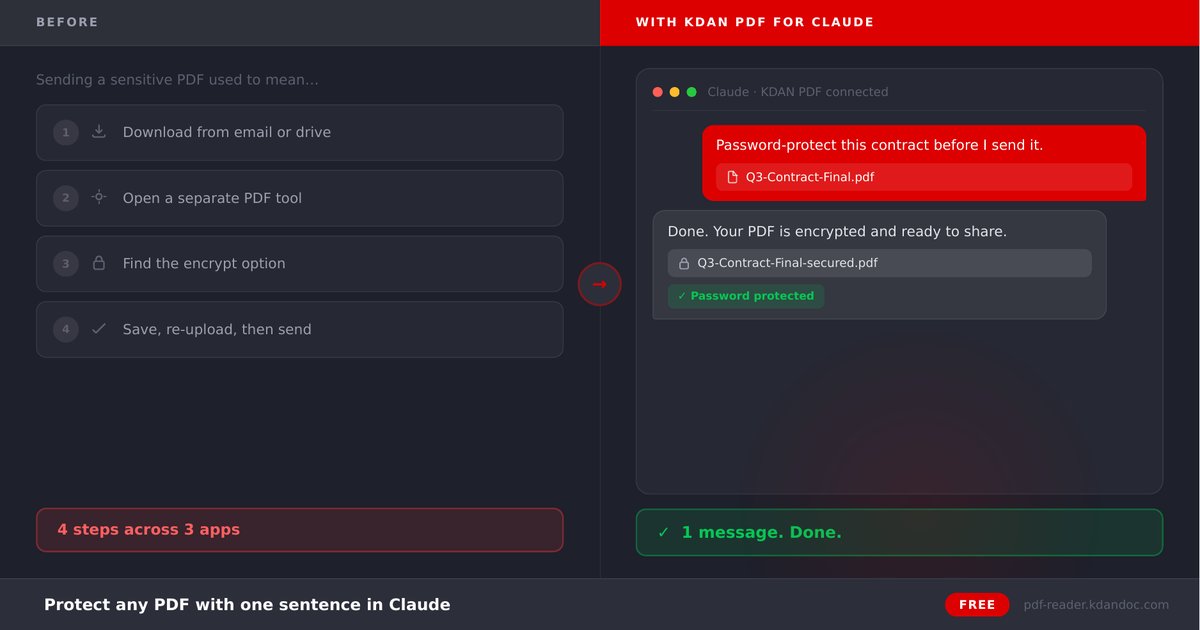
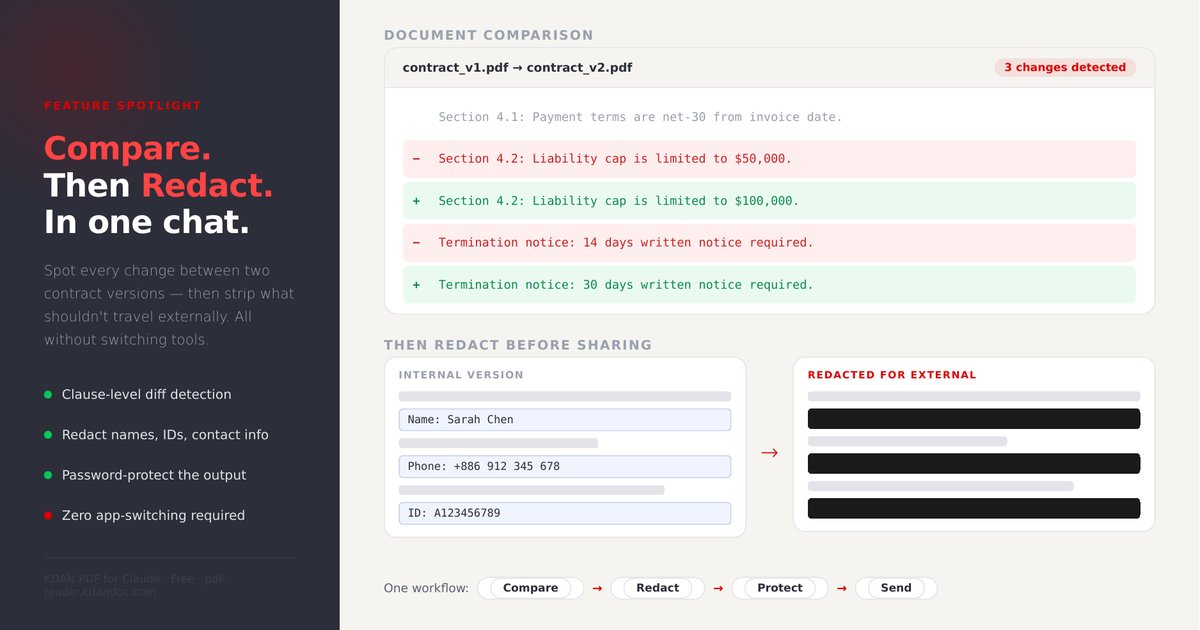
Prompt Pack & resources
- User Guide — step-by-step setup walkthrough.
- Prompt Pack — 24 ready-to-use prompts across 6 categories (Translate, Compare, Remove Pages, Encrypt, Redact, Compress).
- Product page
Privacy & security
KDAN PDF MCP applies true PDF redaction — targeted content is permanently removed, not masked with an overlay, so it cannot be recovered from the output file. KDAN Mobile operates under GDPR, Taiwan PDPA and CCPA. For full details see KDAN's Security, Privacy Policy and GDPR Compliance pages.
FAQ
Q1: Is KDAN PDF MCP free?
A: Yes — completely free and unlimited, with no upsell and no credit card required.
Q2: Can it redact PII in a PDF?
A: Yes. Once national IDs, credit cards, emails and phone numbers are detected, KDAN PDF MCP applies permanent, compliance-ready redaction.
Q3: How is this different from Claude's built-in PDF reading?
A: On its own, an AI assistant can only read a PDF. KDAN PDF MCP adds full editing — encrypt, delete pages, redact and save new copies — all through chat.
Q4: Which AI assistants are supported?
A: Claude (web and desktop) and ChatGPT. Setup steps for each are above.
Q5: Do I need a KDAN account?
A: No. There's no sign-up — paste the connector URL once and start using it.
Q6: Can I use it on a free Claude plan?
A: Yes, KDAN PDF MCP works on free Claude accounts. ChatGPT may require a paid plan to add connectors.
Q7: Does redaction actually remove the data, or just cover it?
A: It removes it. KDAN PDF MCP applies true redaction rather than a visual black box, so the underlying text can't be copied or recovered.
Q8: What PDF tasks are supported?
A: Compress, delete pages, password-protect / change password, redact PII, compare two versions, preview, and generate a download link.
Q9: What languages can I give instructions in?
A: You can chat in the language your AI assistant supports; instructions work in natural language.
Troubleshooting
- Connector doesn't appear? Restart Claude Desktop after adding it, then check Settings → Connectors.
- Authorization didn't complete? Remove the connector and re-add the URL
https://mcp.kdandoc.com/mcp. - Assistant only reads the PDF? Confirm KDAN PDF MCP shows as connected, and mention "KDAN PDF" in your request.
- Large file is slow? Bigger PDFs take longer to process — let it finish before sending the next instruction.
Support & feedback
- Product page & updates: pdf-reader.kdandoc.com
- Questions or issues: open an issue on GitHub.
Related MCP servers
Create coordinated, print-ready coloring book interiors with quotes and explicit confirmation.

com.keboola/mcp
Connect AI assistants to Keboola and expose data, transformations, SQL queries, and job triggers.

Turn outlines and hierarchical notes into interactive mind maps through a hosted remote MCP server.
View repository →Hosted MCP app for guided anxiety, depression, and well-being self-checks.
View repository →Free IELTS prep: band-scored student essays and interactive Listening/Reading drills graded in-chat.

Manage your KeepMySubs subscriptions, spend, renewals, and bills from any MCP client.
View repository →