Antigravity Link MCP Server
io.github.cafeTechne/antigravity-link
Control Antigravity IDE sessions remotely from your phone or automate them via HTTP API and MCP server.
What is the Antigravity Link MCP server?
Antigravity Link is an MCP server and VS Code extension that lets you monitor and control Antigravity IDE sessions from a mobile browser on your local network, or programmatically via HTTP API and MCP tools. It mirrors the active chat, enables file uploads, voice input, and generation control from your phone, and exposes automation endpoints for AI agents.
Antigravity Link bridges your Antigravity IDE to mobile and automation tools. Scan a QR code to access a live mobile mirror of your chat—read streaming responses, send messages, upload files, dictate via voice, and stop generation without returning to your desk. For automation, it exposes a local HTTP API and MCP server so external tools and AI agents can drive Antigravity sessions programmatically.
How to install Antigravity Link
Copy-paste configuration for popular MCP clients.
AG_BRIDGE_URLrequiredBase URL for the local Antigravity Link bridge server
AG_BRIDGE_TOKENrequiredsecretAuth token from the Antigravity Link QR URL
Tools & capabilities
Tools this server exposes to the agent.
get_snapshot— Get current chat state, mode, model, and generation status.send_message— Send a message to the active chat.stop_generation— Cancel active AI generation.get_instances— List available Antigravity windows.switch_instance— Switch to a different Antigravity window.click_element— Click a UI element by selector, text, or coordinates.get_task— Read the current task document.get_walkthrough— Read the current walkthrough document.get_plan— Read the current implementation plan.
Use cases
- Monitor and interact with Antigravity chat from your phone while away from your desk
- Upload files and send messages to an active Antigravity session via mobile browser
- Stop AI generation remotely without returning to your computer
- Automate Antigravity sessions using the HTTP API or MCP server for CI/CD and agent workflows
- Switch between multiple Antigravity windows and read task/walkthrough/plan documents from mobile
Antigravity Link MCP server FAQ
Antigravity Link is a VS Code extension and MCP server that lets you control Antigravity IDE sessions from your phone (via QR code on your local network) or programmatically (via HTTP API or MCP tools). It mirrors the chat, enables uploads and voice input, and stops generation—all without leaving your desk.
Yes. Antigravity Link is MIT-licensed open-source software with no subscription or usage fees.
Install from the Antigravity extensions marketplace by searching 'Antigravity Link', or install directly from Open VSX. Then run 'Antigravity Link: Start Server' and 'Antigravity Link: Show QR Code' to begin.
Add the MCP server to your client config (e.g. claude_desktop_config.json) with the extension path and token from the QR code URL. Set AG_BRIDGE_URL to https://localhost:3000 and AG_BRIDGE_TOKEN to your token. The extension server must be running first.
Yes. All network activity is local—the extension communicates only with your phone on the LAN, Antigravity's debug port on localhost:9000, and the language server on 127.0.0.1. No data is sent to Google or any external service beyond what Antigravity itself sends.
Yes. Every Antigravity window must be launched with the --remote-debugging-port=9000 flag for the extension to discover and connect to it. See the Quick start section for platform-specific commands.
README (reference)
Source of truth, from the repository.
Antigravity Link (VS Code Extension)







Read this in your language: 日本語 · 中文(简体) · 中文(繁體) · 한국어 · Deutsch · Français · Español · Português · Русский · Italiano · Polski · Türkçe · Tiếng Việt · Bahasa Indonesia · العربية
What's new in v1.0.20 — Security: removed
child_processdependency entirely; debug endpoints now require auth; localhost guard on all LS RPC calls. See CHANGELOG.
Contents
- Demo
- What you get
- Installation
- Prerequisites
- Quick start
- Commands
- Settings
- For agent builders
- How it works
- Account safety
- Troubleshooting
- FAQ
- Internationalization and accessibility
- Contributing
- API reference
- MCP server reference
You're running an Antigravity session and need to step away from your desk. The AI is mid-generation. You want to monitor it, redirect it, upload a file, or just read what it wrote from your phone, without coming back to your computer.
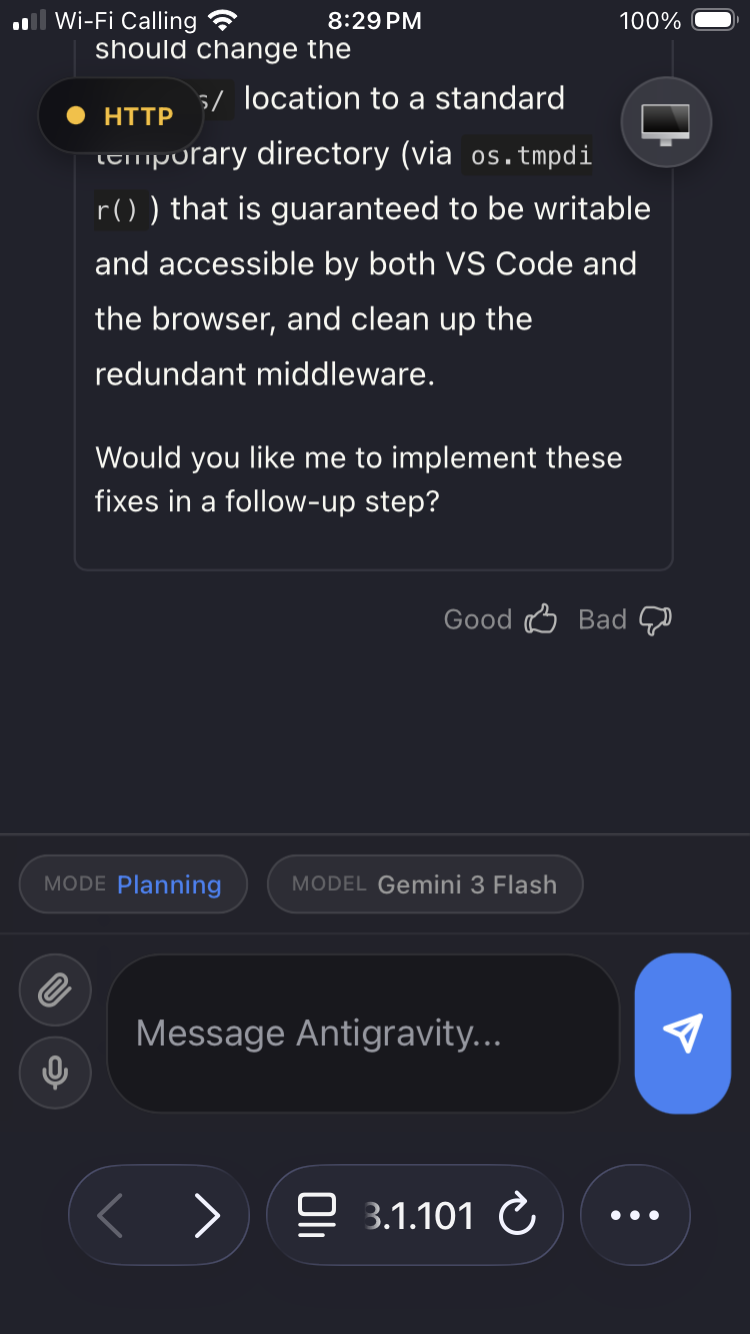
Antigravity Link makes that possible. Scan a QR code and your phone becomes a live mirror of the active chat: read responses as they stream, send messages, stop generation, upload files, dictate via voice, and switch between multiple Antigravity windows all from a mobile browser, on your local network.
For automation, the extension also exposes a local HTTP API and an MCP server so agents and external tools can drive Antigravity sessions programmatically.
Demo
https://github.com/user-attachments/assets/43c7d029-a598-474f-949e-5da333c9a3f2
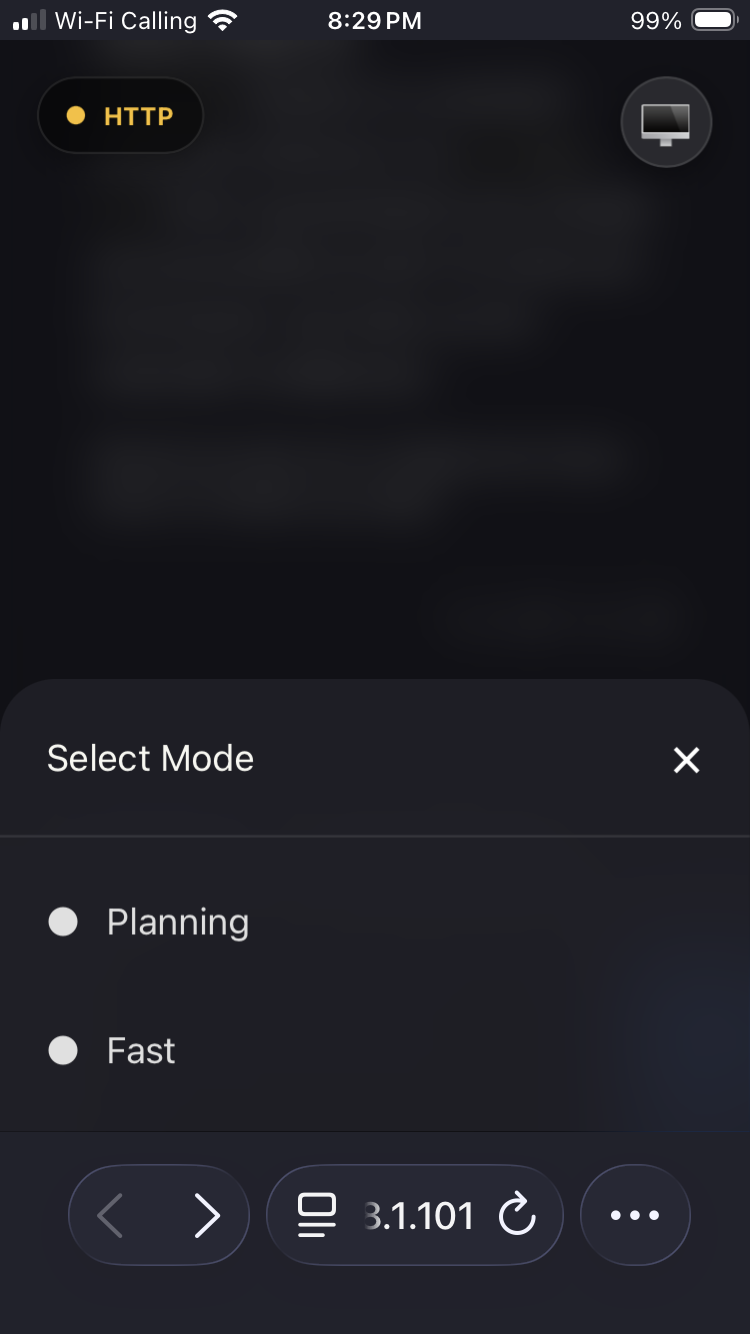
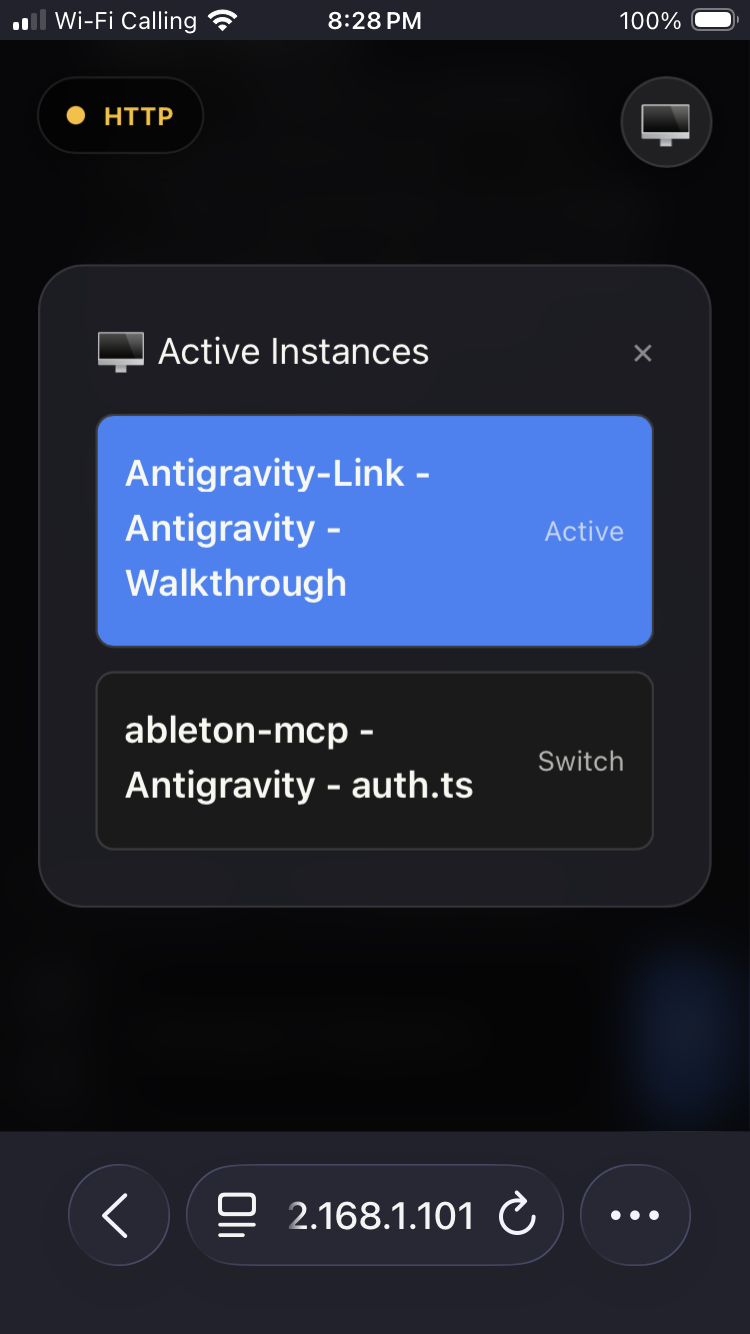
<details> <summary>Screenshots</summary>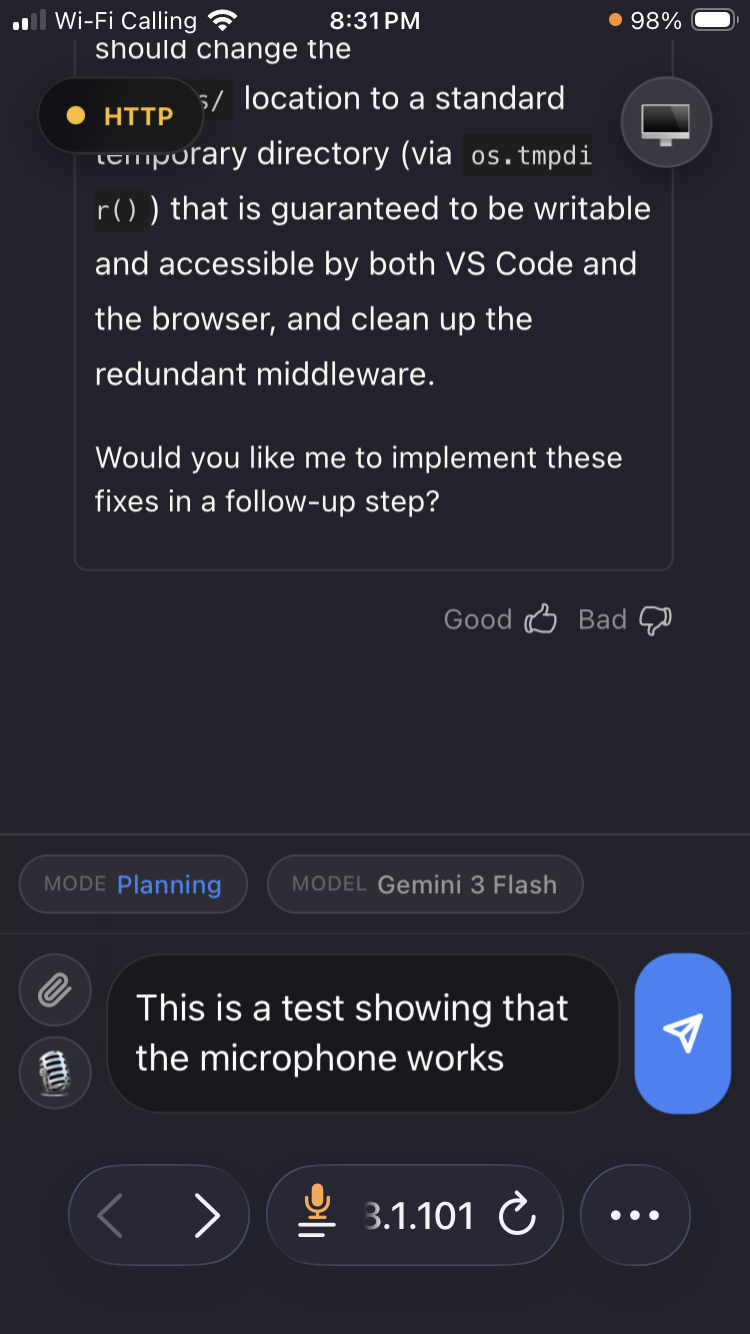 | 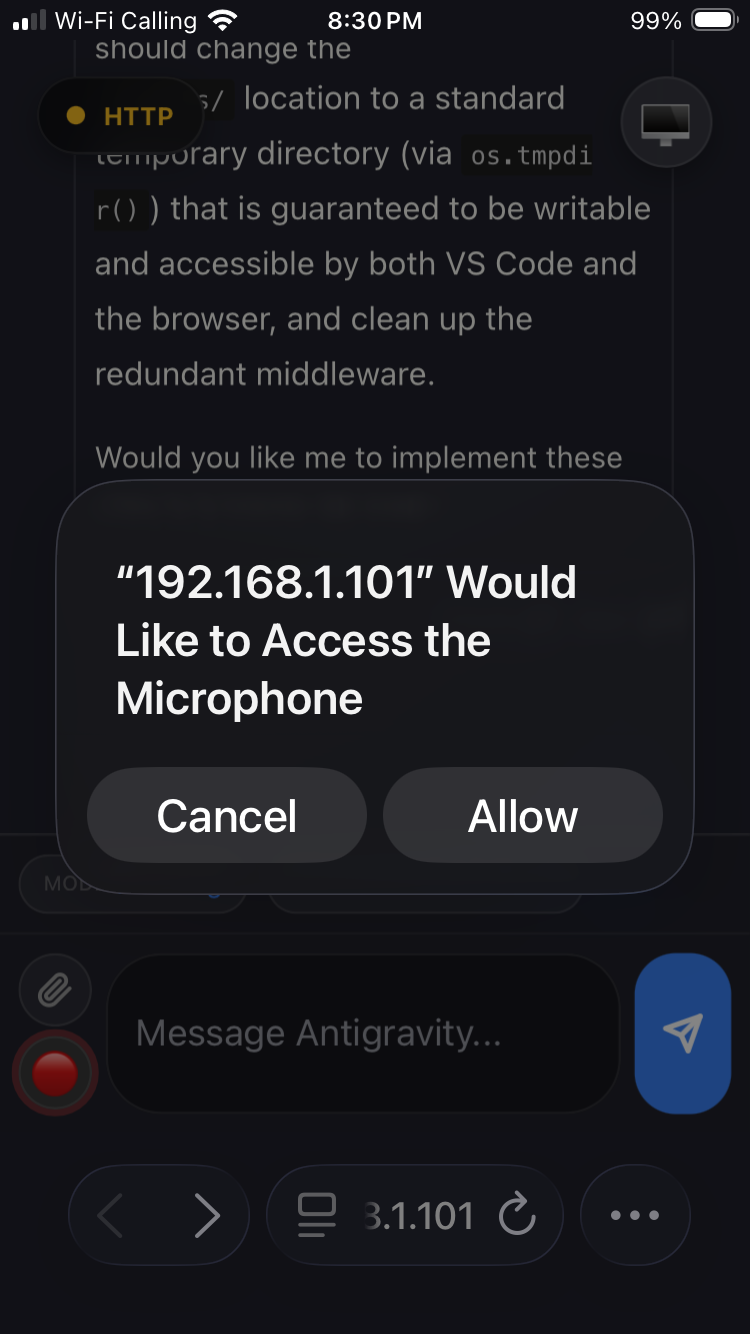 | 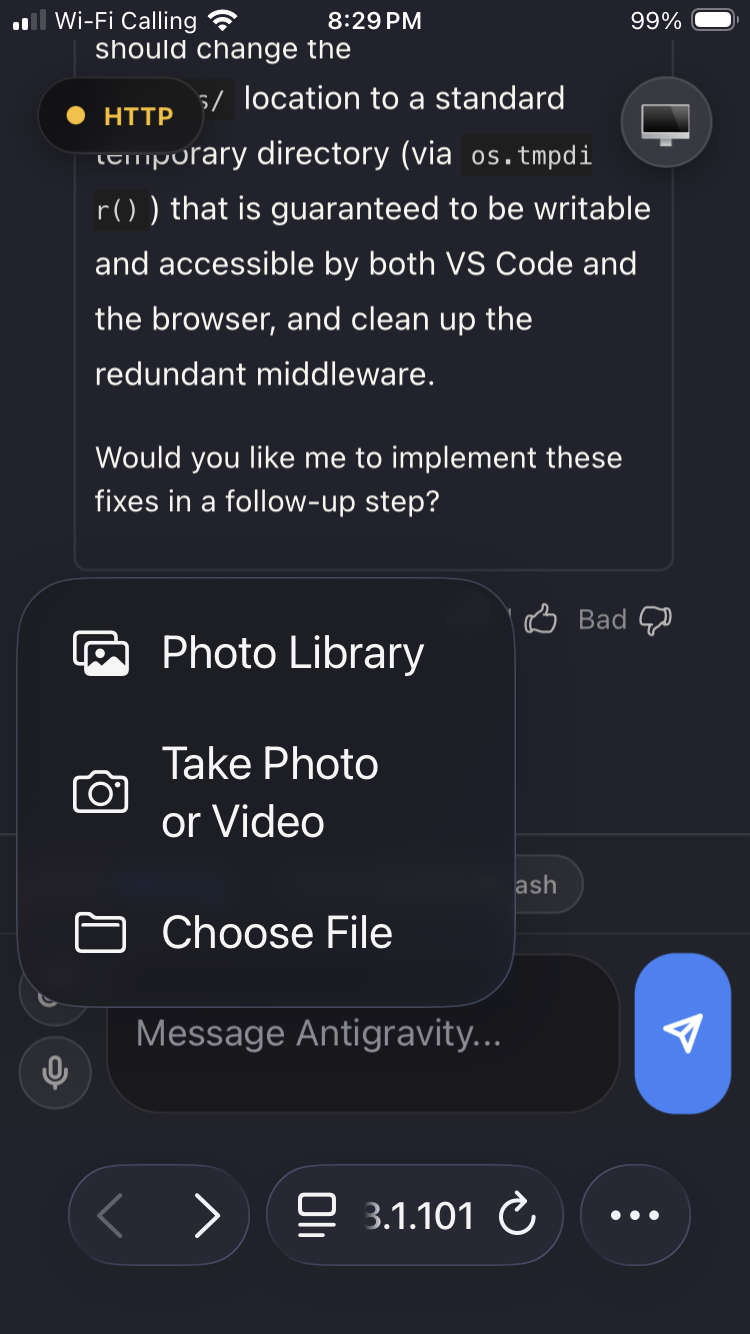 |
 |  |  |
 |
What you get
- Live mirror of the active Antigravity chat — read and interact from your phone.
- File upload into the active Antigravity chat.
- Voice-to-text input from mobile (HTTPS required for mic permissions).
- Stop generation from your phone with a dedicated stop chip.
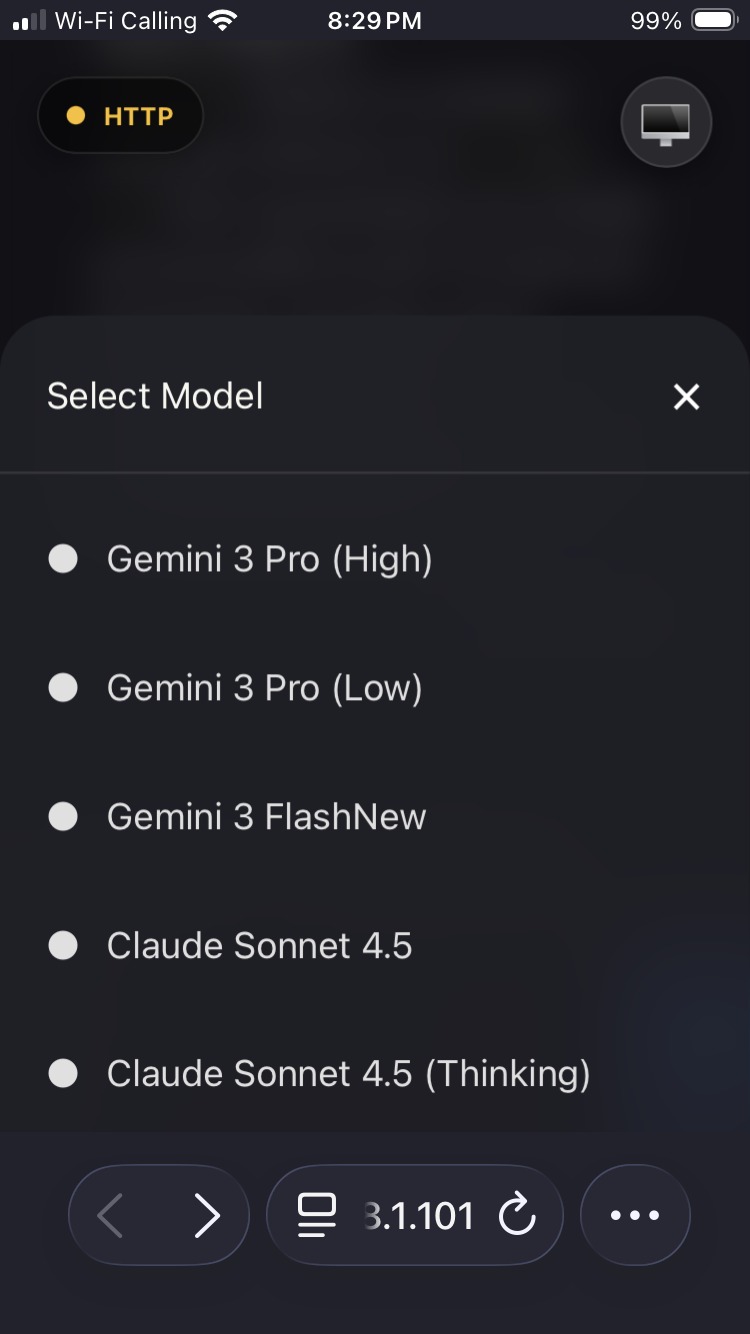
- Active instance switching for multiple Antigravity windows.
- Local HTTP API for automation and integrations (see API).
- MCP server for AI assistant integration (see MCP server).
- Local-only server with token authentication.
- Interface available in 16 languages with automatic detection and RTL support.
Installation
Install from the Antigravity extensions marketplace: search Antigravity Link or install directly from Open VSX.
Prerequisites
- Antigravity IDE installed and running.
- A phone and computer on the same Wi-Fi network.
- Antigravity launched with the remote debugging flag. This is required for the extension to discover and connect to your session. See the launch command in Quick start below.
Quick start
- Start Antigravity with remote debugging enabled. This is required; sessions launched without this flag are not discoverable by the extension.
Windows:
& "C:\Users\<username>\AppData\Local\Programs\Antigravity IDE\Antigravity IDE.exe" --remote-debugging-port=9000
macOS:
open -a "Antigravity IDE" --args --remote-debugging-port=9000
Linux:
antigravity-ide --remote-debugging-port=9000
Multiple Antigravity sessions are supported, but every window must be launched with this command.
-
In VS Code, run:
Antigravity Link: Start Server -
Then run:
Antigravity Link: Show QR Code -
Scan the QR code with your phone. Your mobile UI is ready.
-
Your phone may warn that the connection is unsafe because the certificate is self-signed. This is expected for local HTTPS. Use your browser's "Advanced" or similar option to proceed (wording differs between Safari/Chrome/Firefox).
Commands
| Command | Description |
|---|---|
| Antigravity Link: Start Server | Starts the local bridge server. |
| Antigravity Link: Stop Server | Stops the server. |
| Antigravity Link: Show QR Code | Displays the connection QR code. |
| Antigravity Link: Select Network Interface | Choose which network interface the QR URL advertises. |
Settings
| Setting | Default | Description |
|---|---|---|
antigravityLink.port | 3000 | Port for the local bridge server. |
antigravityLink.autoStart | false | Start the server on VS Code launch. |
antigravityLink.useHttps | true | Serve over HTTPS for mic access. |
antigravityLink.preferredHost | "" | Optional LAN IPv4 to advertise in QR URL (example: 192.168.1.101). |
antigravityLink.strictWorkbenchOnly | true | Only bind to workbench.html CDP targets for stability. |
antigravityLink.includeFallbackTargets | false | Allow jetski/launchpad fallback targets when strict mode is disabled. |
For agent builders
If you want to integrate quickly, use this sequence:
- Start the extension server and copy the token from the QR URL (
?token=...). - Use either MCP tools (
mcp-server.mjs) or direct HTTP calls againsthttps://localhost:3000. - Validate control flow with
/snapshot,/send, and/stop.
OpenAPI example:
curl -k https://localhost:3000/snapshot \
  -H "Authorization: Bearer <token>"
MCP client configuration example:
{
  "antigravity-link": {
    "command": "node",
    "args": ["<extension-dir>/mcp-server.mjs"],
    "env": {
      "AG_BRIDGE_URL": "https://localhost:3000",
      "AG_BRIDGE_TOKEN": "<token>"
    }
  }
}
Replace <extension-dir> with the path to the installed extension:
- Windows:
%USERPROFILE%\.antigravity-ide\extensions\cafetechne.antigravity-link-extension-1.0.20 - macOS/Linux:
~/.antigravity-ide/extensions/cafetechne.antigravity-link-extension-1.0.20
How it works (high level)
- The extension starts a local server (HTTP or HTTPS).
- It discovers Antigravity targets via the Chrome DevTools Protocol (CDP).
- Your phone connects to the mobile UI and sends upload/command requests.
- The extension injects into the selected chat target and saves files to
uploads/.
Account safety
Antigravity Link has no known ban cases and is designed to stay that way.
The extension works by connecting to a debug port that Antigravity exposes on your own machine the same Chrome DevTools Protocol used by VS Code's built-in debugger and browser devtools. It reads your local UI and simulates keypresses and clicks, exactly as if you were sitting at your keyboard.
What this means in practice:
- All network activity is local. The extension communicates only with: your phone on the LAN via the HTTPS server it starts; Antigravity IDE's Chrome DevTools Protocol port on
localhost:9000; and Antigravity's Language Server process on127.0.0.1for the stop-generation RPC. No data is sent to Google's servers or any external service beyond what Antigravity itself sends. - Nothing is injected into Antigravity's network traffic. The extension reads your screen and types into your editor it does not intercept or modify API calls.
- No Antigravity files are modified. There are no patches, hooks, or binary modifications.
- The server runs entirely on your machine. Your prompts, chat history, and files never leave your local network unless you explicitly expose the server externally.
- No data is sent to third-party services by this extension.
The source code is MIT-licensed and fully auditable: https://github.com/cafeTechne/antigravity-link-extension
Troubleshooting
- No instances found: Make sure every Antigravity window was launched with the
--remote-debugging-portcommand shown above. - Can't connect from mobile: Ensure your phone and computer are on the same network.
- Uploads save but don't appear in chat: Switch to the correct Active Instance in the mobile UI.
- Stuck on "Initializing…": The server is reachable but the chat surface has not been captured yet. Wait a few seconds for the CDP connection to initialize.
FAQ
Does this work on iOS and Android? Yes. The mobile UI runs in any modern mobile browser Safari on iOS, Chrome on Android, and others all work.
Does this work over cellular or VPN? Not by default: the server is LAN-only. For remote access you would need to expose it through a tunnel such as ngrok, wireguard, etc.. The token authentication and HTTPS remain in place regardless.
Is the self-signed certificate warning safe to accept? Yes. The certificate is generated locally on your machine at server start. The warning appears because it is not issued by a public certificate authority, not because the connection is insecure.
Can I use this for automation? Yes. The local HTTP API and MCP server are designed for exactly this. See the API and MCP server sections.
Internationalization and accessibility
The mobile interface automatically detects your browser's language and renders in:
English · 日本語 · 中文(简体)· 中文(繁體)· 한국어 · Deutsch · Français · Español · Português · Русский · Italiano · Polski · Türkçe · Tiếng Việt · Bahasa Indonesia · العربية
Arabic is rendered right-to-left automatically. Language detection uses navigator.language with no configuration required.
The interface is built with semantic HTML, ARIA roles, aria-live regions for connection status, keyboard navigation, and screen-reader-compatible labels throughout.
Contributing
Pull requests are welcome. Check the TODOs in the codebase or open a GitHub issue to discuss ideas before starting large changes.
See CONTRIBUTING.md for setup and PR notes.
API
The extension exposes a local HTTP API at https://localhost:3000 (or your configured port). All endpoints except /ping require an Authorization: Bearer <token> header. The token is the value after ?token= in the QR code URL.
| Method | Endpoint | Description |
|---|---|---|
| GET | /ping | Health check — returns pong. No auth required. |
| GET | /snapshot | Current chat surface: HTML, CSS, mode/model, isGenerating. |
| GET | /instances | List active Antigravity windows. |
| POST | /instance | Switch active window. Body: { "targetId": "..." } |
| POST | /send | Send a message. Body: { "message": "..." } |
| POST | /click | Click a UI element. Body: { "selector"?, "text"?, "x"?, "y"? } |
| POST | /stop | Stop AI generation. |
| POST | /upload | Upload a file (multipart/form-data, field name file). |
| GET | /task | Read the current task document. |
| GET | /walkthrough | Read the current walkthrough document. |
| GET | /plan | Read the current implementation plan. |
Full schema: openapi.yaml
MCP server
Antigravity Link ships an MCP (Model Context Protocol) server that lets AI assistants drive your Antigravity session directly.
Setup
Add the following to your MCP client configuration (e.g. claude_desktop_config.json):
{
  "antigravity-link": {
    "command": "node",
    "args": ["<extension-dir>/mcp-server.mjs"],
    "env": {
      "AG_BRIDGE_URL": "https://localhost:3000",
      "AG_BRIDGE_TOKEN": "<your-token>"
    }
  }
}
Replace <extension-dir> with the path to the installed extension:
- Windows:
%USERPROFILE%\.antigravity-ide\extensions\cafetechne.antigravity-link-extension-1.0.20 - macOS/Linux:
~/.antigravity-ide/extensions/cafetechne.antigravity-link-extension-1.0.20
The token is the value after ?token= in the QR code URL. The extension server must be running before the MCP client connects.
Available tools
| Tool | Description |
|---|---|
get_snapshot | Get current chat state, mode, model, and generation status. |
send_message | Send a message to the active chat. |
stop_generation | Cancel active AI generation. |
get_instances | List available Antigravity windows. |
switch_instance | Switch to a different Antigravity window. |
click_element | Click a UI element by selector, text, or coordinates. |
get_task | Read the current task document. |
get_walkthrough | Read the current walkthrough document. |
get_plan | Read the current implementation plan. |
Standalone vs workspace assets
This extension is self-contained. It ships its own public/ assets and uploads/ folder and does not require the parent npm run dev build.
If your workspace contains public/ or uploads/, the extension will prefer those paths automatically. This makes it easy to customize the mobile UI or keep uploads in your project root, but it also means behavior can differ between workspaces.
Star history
Acknowledgments
Inspired by early community projects including:
Related MCP servers

ChatSpatial
Schema-enforced spatial transcriptomics analysis with 20 tools and 66 methods via MCP

io.github.caglarbozkurt/heimdall
Scan an MCP server or agent config for injection, exfiltration, and risky capabilities.

AllRatesToday
Real-time & historical exchange rates for 150+ currencies via AllRatesToday (mid-market).
Real-time currency exchange rates, historical data, and multi-currency lookups for MCP clients.

CAI MCP
CAI MCP server — gives AI agents a custodial wallet, @cai.com email, and vault.

787 personas sintéticas do consumidor bancário brasileiro para discovery de produtos.