MCP Server for PowerPoint MCP Server
io.github.sbroenne/mcp-server-powerpoint
AI-powered PowerPoint automation via live COM interop—build and edit .pptx decks through natural language.
What is the MCP Server for PowerPoint MCP server?
The PowerPoint MCP Server is a Model Context Protocol server that enables AI assistants to automate Microsoft PowerPoint presentations through conversational AI. It drives a live PowerPoint desktop instance via COM interop to create, edit, and format slides, shapes, tables, charts, and speaker notes—with export-to-image verification for visual accuracy.
Automate PowerPoint presentations with AI by building slides, adding shapes and tables, inserting charts, formatting text, managing speaker notes, and exporting to images for visual verification. Unlike file-parsing approaches, this server controls a real PowerPoint instance, ensuring true-fidelity rendering and zero risk of producing invalid .pptx files. Perfect for AI assistants and coding agents that need to build or edit decks programmatically.
How to install MCP Server for PowerPoint
Copy-paste configuration for popular MCP clients.
Tools & capabilities
Tools this server exposes to the agent.
presentation— Create, open, save, close presentations; apply templates; manage document properties and themes; set Mark as Final flag (20 operations)slide— Manage slide lifecycle, visibility, backgrounds, sections, comments, and imports (25 operations)shape— Add and edit shapes, connectors, WordArt, 3D rotation, alignment, styling, grouping, hyperlinks, and placeholders (57 operations)textframe— Edit text, find/replace, font formatting (size, name, color, bold, italic, underline), alignment, and bullets (22 operations)table— Add tables, edit cell text, insert/delete rows and columns, format cell fill and borders, merge cells (12 operations)notes— Set and get speaker notes for slides (2 operations)layout— Set and get slide layouts (4 operations)pagesetup— Configure slide size, first slide number, footer, date/time, and slide numbers (5 operations)accessibility— Audit accessibility and manage reading order (3 operations)master— Inspect theme colors and fonts, manage slide master placeholders and background (12 operations)animation— Add entrance, emphasis, and exit effects; configure slide transitions (5 operations)image— Insert embedded or linked pictures; adjust brightness, contrast, recolor, and crop (7 operations)chart— Add charts with multi-series data, titles, legend, built-in styles, and data tables (16 operations)media— Insert embedded or linked audio/video and inspect media metadata (2 operations)smartart— Insert and edit SmartArt diagrams (7 operations)export— Export slides or entire presentation to PDF or images for delivery and visual verification (3 operations)customshows— Create and manage named custom shows—curated, ordered slide subsets for reusing one deck with different audiences (3 operations)
Use cases
- Build a complete presentation from scratch with title and content slides, then export as images to verify layout
- Create and populate tables and charts with data, then format and position them alongside text
- Apply corporate templates and themes to existing presentations while preserving slide content
- Add speaker notes to each slide and format text with specific fonts, colors, and styling
- Export individual slides or entire decks as images to visually verify that shapes, text, and charts don't overlap or overflow
MCP Server for PowerPoint MCP server FAQ
It's an MCP server that lets AI assistants (Claude, Copilot, ChatGPT) automate Microsoft PowerPoint by controlling a live PowerPoint instance via COM interop. You can create slides, add shapes and tables, insert charts, format text, and export to images—all through natural language.
Yes, the PowerPoint MCP Server is open-source under the MIT License. You only need a Windows machine with Microsoft PowerPoint 2016 or later installed.
For VS Code/Cursor: install the extension from the VS Code Marketplace. For Claude Desktop: download the `.mcpb` file from the latest GitHub release and add it to your MCP configuration. For other clients, download the standalone `mcp-powerpoint.exe` executable and add it to your PATH.
Windows only (COM interop is Windows-specific), Microsoft PowerPoint 2016 or later, and a desktop environment. It controls a real PowerPoint process, so it's not suitable for server-side or headless processing.
No, the PowerPoint MCP Server is Windows-only because it relies on Windows COM automation to control PowerPoint. There is no Linux or macOS version.
Most tools parse `.pptx` files offline or use LibreOffice rendering. This server drives a live PowerPoint desktop instance via the official COM API, ensuring true-fidelity rendering and zero risk of producing invalid files. It also exports slides to images so AI can visually verify the result.
README (reference)
Source of truth, from the repository.
PowerPointMcp — MCP Server & CLI for Microsoft PowerPoint






Automate PowerPoint with AI — a Model Context Protocol server and CLI
for live, real-time PowerPoint automation through conversational AI. Sibling project to
mcp-server-excel, following the same layered
architecture: ComInterop → Core → CLI / MCP Server.
MCP Server for PowerPoint enables AI assistants (GitHub Copilot, Claude, ChatGPT) to build and
edit real .pptx presentations through natural language — slides, shapes, text, tables, charts,
speaker notes, and layouts — no VBA or PowerPoint object-model knowledge required.
🛡️ Live COM automation, not file parsing — Most PowerPoint MCP servers manipulate .pptx
files offline with libraries like python-pptx, or use agent-run scripts with LibreOffice-rendered
thumbnails. This project instead drives a live, real PowerPoint desktop instance via
Microsoft.Office.Interop.PowerPoint — the official Primary Interop Assembly. That means
true-fidelity rendering, compatibility with an already-open deck, and zero risk of producing a
.pptx that PowerPoint itself can't open, because PowerPoint is the one writing it.
🖼️ Export-to-verify — the core differentiator. After any visual edit, export the slide (or the
whole deck) to an image with export(action="export-slide-to-image", ...) /
export(action="export-all-slides-to-images", ...) and let a
vision-capable AI assistant see the result — catching overlapping shapes, text overflow, and
layout regressions that text-only automation simply cannot detect.
Technical Requirements:
- ⚠️ Windows Only — COM interop is Windows-specific
- ⚠️ PowerPoint Required — Microsoft PowerPoint 2016 or later must be installed
- ⚠️ Desktop Environment — controls a real PowerPoint process (not for server-side processing)
[!TIP] Also automating spreadsheets? Check out Excel MCP Server — the sister project, built the same way.
🎯 What You Can Do
17 MCP tools with 205 operations across 17 domains:
- 🗂️ Presentation (20 ops) — create, open, Save As, Save Copy As, close, list sessions, apply a
.potx/.pptxtemplate's masters/theme/layouts, read the current theme name, set/read PowerPoint's advisory Mark as Final flag, read/write built-in and custom document properties, and manage string tags - 📑 Slide (25 ops) — lifecycle, visibility, backgrounds, sections, comments, slide import, and string tags
- ▭ Shape (57 ops) — shapes, free-floating and attached connectors, WordArt, 3D rotation, alignment/distribution, styling, grouping, merging, duplication and cross-slide copying, hyperlinks, linked assets, placeholder editing, and string tags
- ✏️ TextFrame (22 ops) — text, find/replace, font size/name/color, bold, italic, underline, alignment, bullets
- 📊 Table (12 ops) — add, cell text, insert/delete rows & columns, cell fill/border, merge cells
- 🗣️ Notes (2 ops) — set/get speaker notes
- 🖼️ Layout (4 ops) — set/get slide layout
- 📐 Page Setup (5 ops) — slide size, first slide number, footer, date/time, slide numbers
- ♿ Accessibility (3 ops) — deterministic audit and reading-order management
- 🎭 Master (12 ops) — theme color/font inspection, slide master title/body placeholder fonts, background color
- 🎬 Animation (5 ops) — shape entrance/emphasis/exit effects, slide transitions
- 🖼️ Image (7 ops) — insert embedded or linked pictures and adjust brightness, contrast, recolor, and crop
- 📈 Chart (16 ops) — add chart, multi-series data, titles, legend, built-in styles, color styles, and data tables
- 🎧 Media (2 ops) — insert embedded or linked audio/video and inspect native media metadata
- 🔀 SmartArt (7 ops) — insert and edit SmartArt diagrams
- 🖼️ Export (3 ops) — export to PDF or images for delivery and visual verification
- 🎬 Custom Shows (3 ops) — named custom shows: curated, ordered slide subsets for reusing one deck with different audiences
Every domain is exposed as a single action-dispatch tool (e.g. shape, table, chart,
presentation) with an action parameter selecting the specific operation — keeping the tool
list small for AI assistants while still exposing every operation.
📚 Complete Feature Reference → — detailed documentation of every tool and operation
💬 Example Prompts
Build a deck from scratch:
- "Create a new presentation with a title slide and three content slides about our Q3 results, then export it as images so I can see it."
Tables & charts:
- "Add a 4x3 table summarizing this data, then add a bar chart next to it."
Formatting & shapes:
- "Make the title bold and blue, and move the logo to the top-right corner."
Speaker notes:
- "Write speaker notes for each slide summarizing the key talking point."
Templates & themes:
- "Apply our corporate template to this deck without losing any of the slide content."
Visual verification:
- "Export slide 3 as an image and tell me if the chart overlaps the text box."
👥 Who Should Use This?
Perfect for:
- ✅ AI assistants and coding agents that need to build or edit
.pptxdecks - ✅ Anyone automating repetitive slide-deck workflows (reports, status decks, templates)
- ✅ Teams that want export-to-verify visual checks on every automated edit
Not suitable for:
- ❌ Server-side/headless processing (this drives a real desktop PowerPoint process)
- ❌ Linux/macOS users (Windows + PowerPoint installation required)
🚀 Quick Start
| Platform | Installation |
|---|---|
| VS Code | Install Extension (one-click, recommended) |
| Claude Desktop | Download .mcpb from latest release |
| Any MCP Client | Download mcp-powerpoint.exe from latest release and add to PATH |
| Details | 📖 Full Installation Guide → |
⚠️ Important: Close any open instances of the target file before automating it — the server needs exclusive access to the presentation while it's driving PowerPoint.
🔧 CLI vs MCP Server
This project provides both a CLI and an MCP Server interface. Choose based on your use case:
| Interface | Best For | Why |
|---|---|---|
CLI (pptcli / powerpointcli.exe) | Coding agents (Copilot, Cursor, Windsurf) + scripting | Single tool, no large schemas — better for cost-sensitive, high-throughput automation. |
MCP Server (mcp-powerpoint) | Conversational AI (Claude Desktop, VS Code Chat) | Rich tool discovery, persistent session. Better for interactive, exploratory workflows. |
Manual installation:
# Primary: Download standalone executables from latest release (no .NET runtime required)
# https://github.com/sbroenne/mcp-server-powerpoint/releases/latest
# - PowerPointMcp-MCP-Server-{version}-windows.zip → extract mcp-powerpoint.exe
# - PowerPointMcp-CLI-{version}-windows.zip → extract powerpointcli.exe

# Secondary: Install via .NET tool (requires .NET 10 runtime)
dotnet tool install --global Sbroenne.PowerPointMcp.McpServer
dotnet tool install --global Sbroenne.PowerPointMcp.CLI

# After installing either way, auto-configure your coding agents:
npx add-mcp "mcp-powerpoint" --name powerpoint-mcp
# Optional: Install the agent skill for better AI guidance
npx skills add sbroenne/mcp-server-powerpoint --skill powerpoint-mcp
💡 The VS Code extension installs this skill automatically. Manual
npx skills addis for other MCP clients (Claude Code, Cursor, Windsurf, etc.).
⚙️ How It Works - COM Automation & Unified Service Architecture
PowerPointMcp uses Windows COM automation to control the actual PowerPoint application (not
just .pptx files).
The MCP Server and CLI are two equal, first-class entry points. Each hosts its own PowerPointMcp Service that manages presentation sessions — the MCP Server runs it in-process (direct calls, no pipe), while the CLI uses a background daemon over a named pipe so sessions persist across CLI invocations:
┌──────────────────────┐        ┌──────────────────────┐
│  MCP Server          │        │  CLI (pptcli)        │
│  (AI assistants)     │        │  (coding agents)     │
└──────────┬───────────┘        └──────────┬───────────┘
           │ in-process                     │ named pipe →
           │ (direct calls)                 │ background daemon
           ▼                                ▼
┌──────────────────────┐        ┌──────────────────────┐
│  PowerPointMcp       │        │  PowerPointMcp       │
│  Service             │        │  Service             │
│  (session mgmt)      │        │  (daemon; sessions   │
│                      │        │   persist across     │
│                      │        │   CLI invocations)   │
└──────────┬───────────┘        └──────────┬───────────┘
           ▼                                ▼
      Core Commands                    Core Commands
           ▼                                ▼
┌──────────────────────┐        ┌──────────────────────┐
│  PowerPoint COM API  │        │  PowerPoint COM API  │
│  (PowerPoint.        │        │  (PowerPoint.        │
│   Application)       │        │   Application)       │
└──────────────────────┘        └──────────────────────┘
Both entry points share the same Core Commands codebase, so every operation behaves identically. They are separate processes, though: each runs its own PowerPointMcp Service and its own PowerPoint instance, and they do not share live sessions with each other.
Key Benefits:
- ✅ Two equal entry points — every operation works identically through the MCP Server and the CLI
- ✅ Persistent CLI sessions — the CLI daemon keeps presentations open across multiple
pptclicalls, so scripts don't re-open files each time - ✅ In-process MCP calls — the MCP Server runs the service in-process (no pipe) for low-latency automation
- ✅ Real PowerPoint automation — drives the actual
PowerPoint.Applicationvia COM, not just file parsing - ✅ Export-to-verify — close the loop on every visual change with a real rendered image
⭐ GitHub Star History
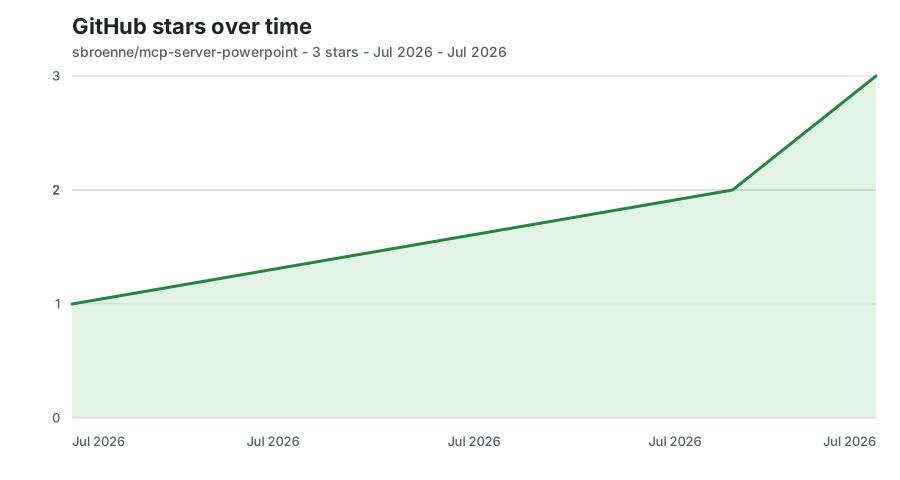
Bootstrapped from exact authenticated stargazer timestamps, then updated daily from GitHub's exact public star count. Only date/count aggregates are retained.
📋 Additional Information
📚 MCP Server Guide → | CLI Guide → | Agent Skills →
📖 Complete Feature Reference • Installation Guide • Changelog • Native Feature Roadmap • Contributing • Security • Privacy
License: MIT License — see LICENSE
Built With: This entire project was developed using GitHub Copilot AI assistance.
Acknowledgments:
- Microsoft PowerPoint Team — for comprehensive COM automation APIs
- Model Context Protocol community — for the AI integration standard
- mcp-server-excel — the sibling project this architecture and tooling is ported from
Related Projects
Other projects by the author:
- Excel MCP Server — AI-powered Excel automation via Power Query, DAX, VBA, and PivotTables
- Windows MCP Server — AI-powered Windows automation via MCP
- OBS Studio MCP Server — AI-powered OBS Studio automation
- pytest-skill-engineering — LLM-powered testing framework for AI agents
Related MCP servers

MCP Server for Excel
Automate Microsoft Excel with AI—control sheets, Power Query, DAX, VBA, and more via natural language.
Control fldigi (amateur-radio digital modes) over XML-RPC: modem, frequency, rig, log, transmit.
Let AI configure telecom gear over serial: Juniper and Cisco, Icom CI-V, Yaesu/Kenwood CAT, rotators

Operate WSJT-X (FT8/FT4/WSPR) from MCP clients over its UDP message protocol.